Wednesday, 21 June 2017

Top 10 Cool Features of Microsoft Dynamics 365

Along with new branding, the latest release of CRM for Dynamics 365 brought many updates. Many are accessible for both Virtual and On-Premises, some for now are Online only. As we kick off our CRM for Dynamics 365webinar series, Soluzione IT Servicesshare a list of a few of our favorites.

1.) App Modules – as functional regions extent this new WYSISYG designer allows for creating app modules – basically sub-sets of the overview organization’s functionality.


2.) Site Map Designer a balancing feature to the app modules is a integrated Site Map editor to create a site map for each of the app modules. No longer will we have to use a third-party tool or edit the sitemap directly!


3.) Business Process Flow Developments  this functionality has great new material: Concurrent BPFs per record, new drag-n-drop designer, timer, suggestion bubbles, capability to call workflows directly, and more.


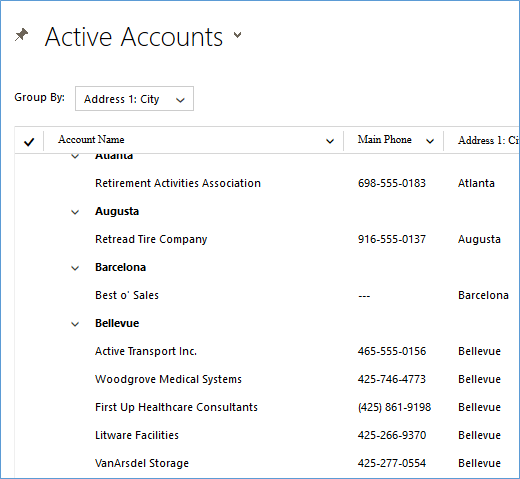
4.) Editable Grids – Additional new feature sure to be a big hit. It allows for in-line editing, JavaScript and other web resources, grouping, dragging columns around, plus additional ability in the mobile apps.

5.) Relationship insights – this feature is online only and takes your customer appointment to the next level. Your associate will evaluate your data and deliver suggestions, capture rich signals from Exchange, generate a group of Action cards, and more.

6.) Dynamics 365 App for Outlook – The app was introduced in 2015 and gets important updates with this announcement. It persists on the right side of the screen showing the recipient list, the related records, the ability to create new records, and also embed templates and attachments.

7.) Mobility – loads of great material here: new workspace, colors and layout, editable grids, track content directly, and task flows are now GA.


8.) Relevance Search – officially a preview feature now has faceting clarifying and full inline results.

9.) Collaborative Service Hub Developments – A few minor but nice developments including the ability to email a link and searching.


10.) Learning Path – The learning ability will now include authoring content to walk a user through your learning videos, how-to, and other documentation.

Addition feature Power BI Integration – With CRM 2016 update 1 we could natively embed Power BI tiles. With Dynamics 365 we can now embed entire dashboards. Leveraging the new Web API we can access more info than ever for our analytics.

Happy CRM’ing!


SOLUZIONE IT SERVICES – MICROSOFT GOLD CERTIFIED PARTNER

 Microsoft Dynamics 365

Every business is unique and each one faces some challenges in its business process functioning. To resolve such challenges, you need unique solutions. Being a Microsoft Gold Certified Partners and Consultants, Soluzione IT Services deliver new experience to the customers by implementing MICROSOFT DYNAMICS 365 which are affordable and extensible. We are here to deliver change in business processes & reduced risk with proven combination of “Expertise & Technology”.

Customers are the King and are the Asset of an organization:


With CRM system, you can grow your business faster with reliability at efficient level. MicrosoftDynamics 365 solution is itself a new edge in this modern technology world. It is becoming dynamic on each release with additional functionality. It helps your business to achieve goals since such solutions are customer focused and your customers are the true asset of your business. We deliver custom solutions depending upon the requirements; we undertake implementations in various engagement models.


When it comes to business objectives, you must surround yourself with these questions and our solutions are focused to solve these queries.

·        How to acquire new customers?

·        How to develop long term value for customers.

·     How to optimize & monitor cost of marketing, sales, and services & business processes.

On implementing CRM solution for your business, first we ensure customer view, then we optimize IT investments as well as we focus on reduction of implementation effort. We move with right planning to manage each aspect of your customer by providing excellent customer service experiences. To make long term customer relations, your services should be proactive, personalized and predictive across three levels i.e. Marketing, Sales as well as Customer Service.


How Microsoft Dynamics 365 helps your business activities around marketing, sales and customer services:

·    To turn leads into sales we offer communication enabled business processes with 360-degree view on customer interaction as well as augment sales opportunities.

·    Increase sales success by shortening your sales cycle and improve win rates with qualified lead and opportunity management.

· Improved sales qualification via automated lead routing, sales process management and competitor tracking.

·      We automate sales activities to provide right leads and prospects.

·     You can automate your daily business activities so that you can focus on selling instead of managing data.

·       You can track sales activities & business workflow with CRM solution.

·      You can Integrate CRM solution with other applications to deliver fully scalable, customized business solution.

· We are delivering business value since we integrate proper interaction & knowledge techniques to manage customer service.

· We plan, implement, execute & measure several marketing campaigns across different channels.


Why Soluzione IT Services is the best Microsoft Dynamics 365 consultant?

At Soluzione IT Services, we are always abreast with latest technology and changing market trends. Our expertise with Dynamics 365 has been long running and we have been working with all the previous versions of Dynamics CRM 2011, 2013, 2015, 2016 and now Dynamics 365. We have IT experts who are Microsoft Certified and seasoned enough to direct and develop your CRM system to optimize your Marketing, Sales and Customer Service.


Tuesday, 13 June 2017

DYNAMICS 365-LEARN TO SEND AN EMAIL ON RECORD SHARE

One of the common things people do in Dynamics365 is share a record such as Lead, Opportunity etc. with other users. So how does a user know that a record has been shared with him/her?


This was asked by one of our customer’s. They said “I cannot call and tell that I have shared a lead with you”. Since emails are an integral part of most users’ days, it makes sense that Dynamics365 should have the capability to send an email notifying the user that record has been shared with him/her. But sadly there was no out-of-box configuration that allows such notification in Dynamics365.

To solve this, we had to look at our good friend ‘plugin’, so we decided to write a plugin in order to send an email notification when a record is shared.

Sending email was the easy part but there was very little information that we found on which event to trigger the plugin and how to get the details of users with whom the record is being shared.

Solution

Create a plugin project as you would normally do. We used the Dynamics365 Developer toolkit to do the same. Whenever a record is shared “Grant Access” message is fired so check if the context message is Grant Access (i.e. plugin is executed for ‘Grant Access’)


Get the user who has shared the record by checking the context under which the plugin is running.


Now the tricky part – Get the user with whom the record is being shared. This is found under the “Principal Access” parameter in the plugin context.

In our case as Lead was being shared so get the Lead record that is being shared.

Now we have the user who shared the record, user with whom the record is shared and the record that is shared, so you can now simply create an email message and send email notification from plugin.

Although simple but it is a really handy solution for a common requirement.

So that’s it from SoluzioneITServices Microsoft Gold Partner . This is our first blog and hope you like it.
If you want additional services then check out Soluzione Digital Services.


Monday, 12 June 2017

LATEST VERSION OF SOLZEDITOR – RICH TEXT HTML EMAIL EDITOR FOR MICROSOFT DYNAMICS 365

HTML emails have been a pain area for Dynamics users. To overcome this issue, Soluzione developed SolzEditor, a Rich Text HTML Email Editor. After successfully working with the earlier versions of Dynamics CRM, SolzEditor is now upgraded to work with Dynamics 365. One of main limitations in the previous versions was the inability to add dynamic CRM data fields to the email template directly. That was one of the primary reason why at the end of formatting, one had to open template in the core CRM editor and then add the CRM fields.


This problem has been addressed in the most recent version. This latest version of SolzEditor allows one to select the CRM entity and add CRM attributes to the template natively. Let’s look at how you can add dynamics 365 entity attributes below.

1.     Go to HTML Email Template Editor and open an existing template say Case Escalation.

2.     As you can see the HTML template is loaded and editing area and much similar to how it is in the core CRM the dynamic fields are highlighted in yellow.

Dynamics365,Microsoft Dynamics365,HTML Email Editor,Microsoftgoldpartner,365,Dynamics,
3.     You can see two new dropdown options, first one is Entity in which a list of related CRM entities is loaded. This list depends on the type of template i.e. is it an email template for Account or Contact or Case or Organization etc. As you can see below the “Case Escalation” template is based on Case entity and the related entities are loaded in the Entity dropdown.

Dynamics365,Microsoft Dynamics365,HTML Email Editor,Microsoftgoldpartner,365,Dynamics,

4.     The second new dropdown is Attributes. Once you select a related CRM Entity, the applicable entity attributes are populated in the Attributes dropdown. You can see if Account entity is selected the Attributes dropdown has the attributes of account entity.

Dynamics365,Microsoft Dynamics365,HTML Email Editor,Microsoftgoldpartner,365,Dynamics,

5.     Click on the place in email template where you want to insert the dynamic field i.e. attribute. Simply select the attribute and click Insert. The below example shows how we inserted the Account Owner at the end of email.


Dynamics365,Microsoft Dynamics365,HTML Email Editor,Microsoftgoldpartner,365,Dynamics,

6.     If you open the template using “Open Template” you can see that the values we inserted are now inserted properly in the email template.

Dynamics365,Microsoft Dynamics365,HTML Email Editor,Microsoftgoldpartner,365,Dynamics,
Few things that can be improved in a future versions is the default text condition and showing the display name of the attribute instead of logical name.

If your business needs new expansion solutions, Soluzione can help. To get more details, please contact us at info@solzit.com.


Thursday, 1 June 2017

AUTO COMPLETE FEATURE FOR MICROSOFT DYNAMICS

AutoComplete is one of the most desired and the most basic featurefor Microsoft Dynamics365. It not only enhances customer experience but helps in fast and accurate entry of records.
Soluzione has developed an Auto-Complete solution that can be plugged into any Microsoft Dynamics version ranging from Dynamics 365, Dynamics 2016, 2015 and 2013.

Auto Complete can be implemented on simple text fields as well as for complex and composite fields (e.g. Composite Address fields).

Let’s walk through using an example:

The example givenbelow is for implementation of “Auto complete feature” in Micosoft Dynamics 365 for simple text field such as Country in Address Details. One may simply type few characters in the field and a list of country names is displayed in sorted manner.

Assume the simple text field on which we want to enable autocomplete feature is “na_country” and an entity Country Master(na_countrymasters) contains the master list of countries.

Create a web resource say “AddressDetails.js” which will have 2 methods:

Method 1: LoadAutoComplete


This method is executed at the time of ‘Form Load’ to get the list of all countries existing in Country Master (na_countrymasters) entity. We are using Microsoft Dynamics 365 CRM web API to get a list of countries sorted by name. (How to use web API is another topic and we will go into details later.)


function LoadAutoComplete() {
if (Xrm.Page.getControl(“na_country”) != null) {
Xrm.Page.getControl(“na_country”).setDisabled(true);
}
var clientURL = Xrm.Page.context.getClientUrl();
var oDataPath = clientURL + “/api/data/v8.0/”
var req = new XMLHttpRequest();
req.open(“GET”, encodeURI(oDataPath + “na_countrymasters?

$select=na_name,na_countryname&$orderby=na_name”), true);
req.setRequestHeader(“Accept”, “application/json”);
req.setRequestHeader(“Content-Type”, “application/json; charset=utf-8”);
req.setRequestHeader(“OData-MaxVersion”, “4.0”);
req.setRequestHeader(“OData-Version”, “4.0”);
req.onreadystatechange = function () {
if (this.readyState == 4) /* request complete*/ {
req.onreadystatechange = null;
if (this.status == 200) {
var reqResults = JSON.parse(this.response).value;
if (reqResults != null && reqResults.length > 0) {
var countries = [];
for (var i = 0; i < reqResults.length; i++) {
var country = reqResults[i];
countries.push({
id: country.na_countrymasterid,

name: country.na_name,
isocode: country.na_countryname,
fields: [country.na_name, country.na_countryname]
});
}
if (Xrm.Page.getControl(“na_country”) != null) {
Xrm.Page.getControl(“na_country”).setDisabled(false);

}
autoCompleteCountries(countries);
}
}
else {
var error = JSON.parse(this.response).error;
console.log(error.message);
}

}
};
req.send();
}
The above method calls the List of countries from Country Master entity and calls the second method AutoCompleteCountries().

Method 2: Auto Complete Countries


This method works on “key press” event on Country field (The field on which autocomplete is applied)

function autoCompleteCountries(countries) {
var keyPressFcn = function (ext) {
try {
var userInput = Xrm.Page.getControl(“na_country”).getValue();
var resultSet = {
results: new Array(),
commands: {
id: “sp_commands”,
label: “Learn More”,
action: function () {
// Any help or other information URL
//window.open(“http://www.microsoft.com/en-us/dynamics/crm-customer-center/create-or-edit-an-account.aspx”);
}
}
};
var userInputLowerCase = userInput.toLowerCase();
for (i = 0; i < countries.length; i++) {
if (userInputLowerCase === countries[i].name.substring(0, userInputLowerCase.length).toLowerCase()) {
resultSet.results.push({
id: i,
fields: [countries[i].name, countries[i].isocode]
});
}
if (resultSet.results.length >= 10) break;
}
if (resultSet.results.length > 0) {
ext.getEventSource().showAutoComplete(resultSet);
}
else {
ext.getEventSource().hideAutoComplete();
}
} catch (e) {
console.log(e);
}
};
Xrm.Page.getControl(“na_country”).addOnKeyPress(keyPressFcn);
}

Setting in Microsoft Dynamics 365:

Add the AddressDetails.js as new web resource in CRM.

Add this web resource to the form using form properties. Go to manage function and set Load Auto Complete function on form Onload event.


Publish the changes in MS Dynamics 365 CRM. Open the form and start entering letters in Country field. You should get the below autocomplete output.


To Know More visit 
http://www.solzit.com/auto-complete-feature-microsoft-dynamics/
or talk to our experts


Monday, 29 May 2017

AUTO COUNTER IN DYNAMICS 365

For Microsoft Dynamics CRM 4.0.0/2011/2013/2015/2016/ Dynamics 365 one of the major challenges faced by developers is generating Auto numbers on various entities. To overcome this, Soluzione IT services Microsoft Gold Partner releases “Solz Auto Counter”

solution to automate the process of adding counters to the CRM entities. It allows user to configure counter for default as well as custom entities. Here, you can put any prefix, suffix, counter zero padding and specified date formats with Auto numbering. You can set initial value of counter and its incremental value as well. At any point of time it can be activated or deactivated. You can also provide Security Role as per the user access in Dynamics CRM, it can be Read Only or Admin Access.

One can configure the Auto counter for “Dynamics 365”as per the example given below.
1.Install the SolzAutoCounter solution in Dynamics 365 by importing the managed solution. After it is successfully installed you should have SolzAutoCounter in your solutions as below.

2.Clicking on the Auto Counter to navigate the sub-grid.

3.Create a new auto counter record to configure the counter settings.


4.Go to Account entity and create a new record and save


Key Features

·         It allows user to use the auto counter in Microsoft dynamics 365 online or on-premises versions.
·         It allows user to configure the counter for Microsoft dynamics 365 default as well as custom entities.
·         Quick create to set auto counter for any entity.
You can use the following date formats to add as prefix or suffix of the counter
·       Use format “[d]” to Return only date
·       Use format “[m]” to Return only month
·       Use format “[y]” to Return only year
·       Use format “[ddd]” to Return Day First Three Letters
·       Use format “[dddd]” to Return Day Name
·       Use format “[mm]” to Return Month Number In Integer
·       Use format “[mmm]” to Return Month First Three Alphabets
·       Use format “[mmmm]” to Return Month Name
·       Use format “[y]” to Return Year Last Value
·       Use format “[yy]” to Return Year Last Two Value
·       Use format “[yy]” to Return Year Last Three Value
·       Use format “[yyyy]” to Return Year Last Four Value
·       Use format “[yyyyy]” to Return Year Last Five Value

Activate or deactivate counter at any time easily. This will activate or deactivate when the auto counter record is set to activate or deactivated status.

To Know More Visit
http://www.solzit.com/new-auto-counter-dynamics-365/
 or talk to our experts